


WhatsApp is something most of us use every day, but that does not mean we are using all of its useful features. Some of the best WhatsApp tricks are hidden inside settings or menus that you may rarely open.
I use WhatsApp regularly too, and a few of these features genuinely changed the way I use the app. For example, Chat Lock is useful when you do not want a private conversation sitting openly in your chat list, while Linked Devices makes it much easier to use the same WhatsApp account on another phone, tablet or computer.
In this guide, I have picked seven practical WhatsApp tricks that are actually useful rather than gimmicks. I have also included answers to some of the most common questions people ask about hidden and secret WhatsApp tricks. If your device is experiencing Phone Running Slow issues, a few simple WhatsApp and phone optimization tips can also help improve overall performance.
Note: WhatsApp can place features in different locations depending on your Android/iPhone version and app version. If you cannot see a feature, update WhatsApp from the official app store first.
1. Lock Private Chats With Chat Lock and Secret Code
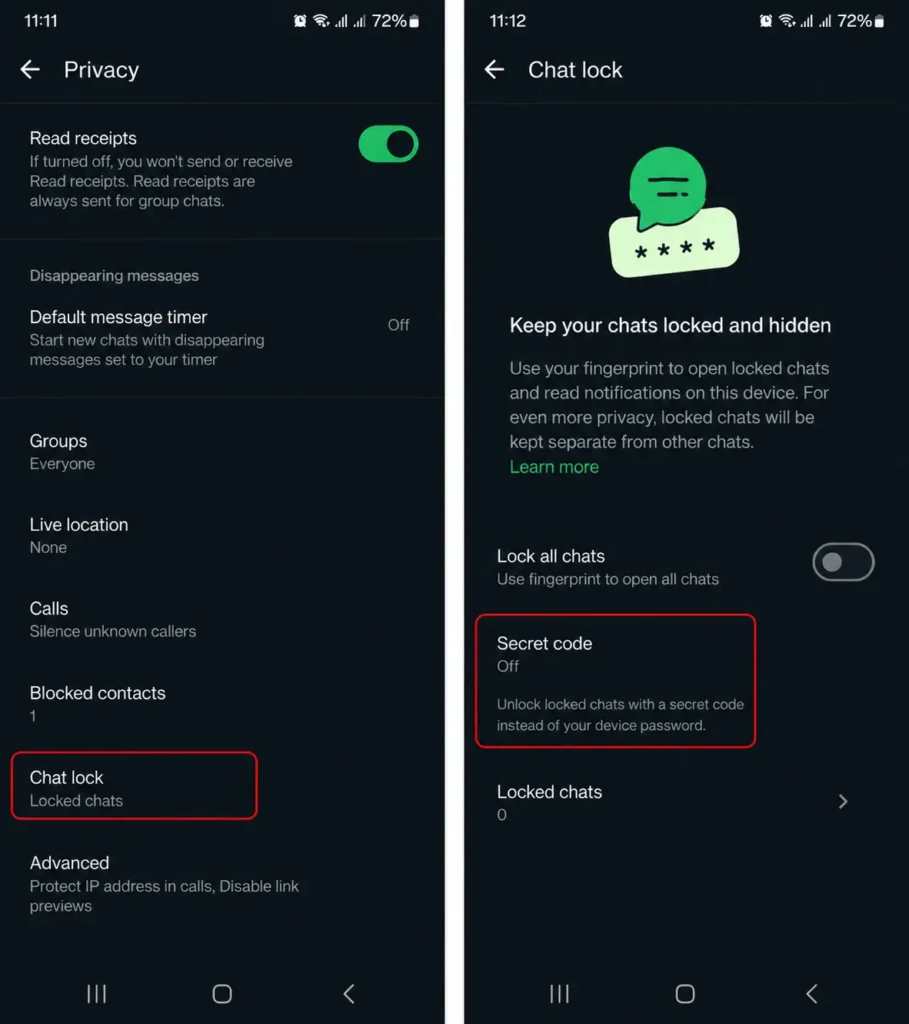
If you have a personal conversation that you do not want appearing openly in your WhatsApp inbox, Chat Lock is one of the most useful privacy features to know about.
Chat Lock moves a selected individual or group conversation into a separate Locked Chats area. The locked conversation is protected using your phone’s password or biometric authentication, such as a fingerprint. WhatsApp also hides the contents of notifications from locked chats.
There is also a Secret Code feature that adds another layer of privacy. You can create a separate secret code for locked chats and choose to hide the Locked Chats folder from your normal chat list. In that case, the locked chats can be found by entering the secret code in WhatsApp’s search bar. If you’re dealing with WhatsApp Storage Full, clearing unnecessary media and large files can also help free up space.
How to use Chat Lock
- Open WhatsApp.
- Open the conversation you want to protect.
- Tap the contact or group name.
- Look for the Chat Lock option.
- Turn it on and authenticate using your phone’s security method.
- Open the Locked Chats section when you need to access the conversation.
My tip: Do not think of Chat Lock as a way to hide something from the owner of the account. It is mainly useful when you share your phone with family members or someone else occasionally uses your unlocked device.
2. Use the Same WhatsApp Account on Another Phone
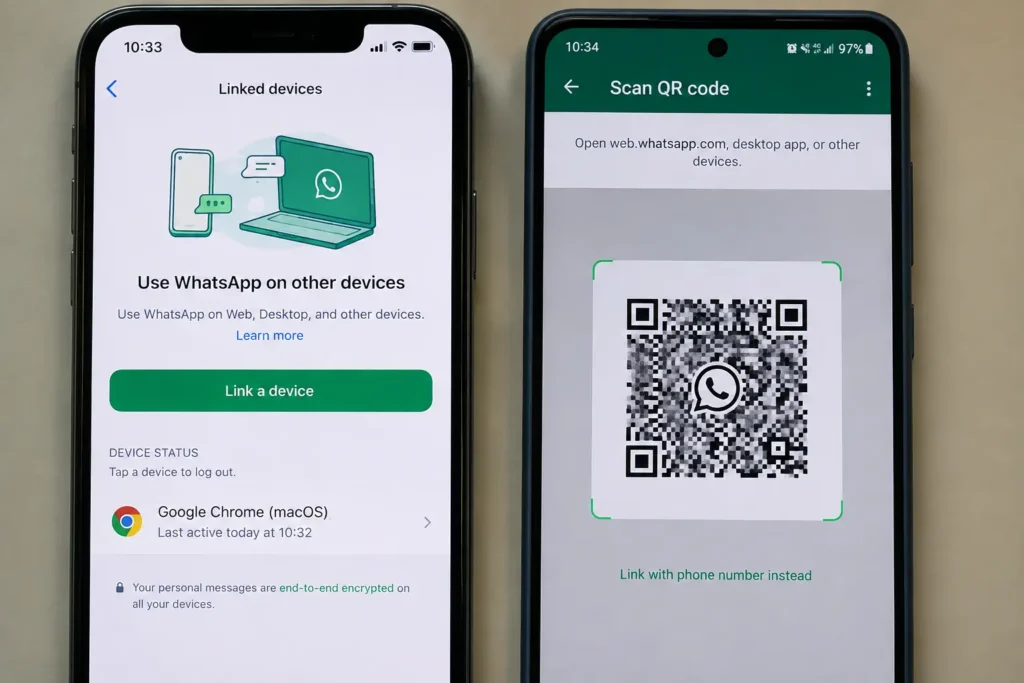
One of the most useful WhatsApp tricks is Linked Devices.
Suppose you use WhatsApp on your main phone but also want to access the same account from another phone, tablet or computer. You do not need to create a completely new WhatsApp account just for that device.
WhatsApp supports linked devices, including phones, tablets, computers and other supported devices. The primary phone is still used to register the account and link new devices.
How to link WhatsApp to another phone
On the phone you want to use as the secondary device:
- Install and open WhatsApp.
- Select the option to link the device to an existing account, where available.
- WhatsApp will show a QR code.
- On your primary phone, open Settings > Linked Devices.
- Choose Link a Device.
- Scan the QR code shown on the secondary phone.
WhatsApp says you can keep up to four linked devices connected to your primary phone at the same time. Linked devices can continue working without the primary phone being continuously online.
Important security tip
Always check Settings > Linked Devices from time to time. If you see a device you do not recognise, remove it immediately. WhatsApp also provides an option to log out a linked device from the primary phone.
And remember: never link another person’s WhatsApp account without their knowledge or permission. There is no legitimate WhatsApp trick that lets you secretly read someone else’s private chats.
3. Make WhatsApp Messages Look Better With Text Formatting
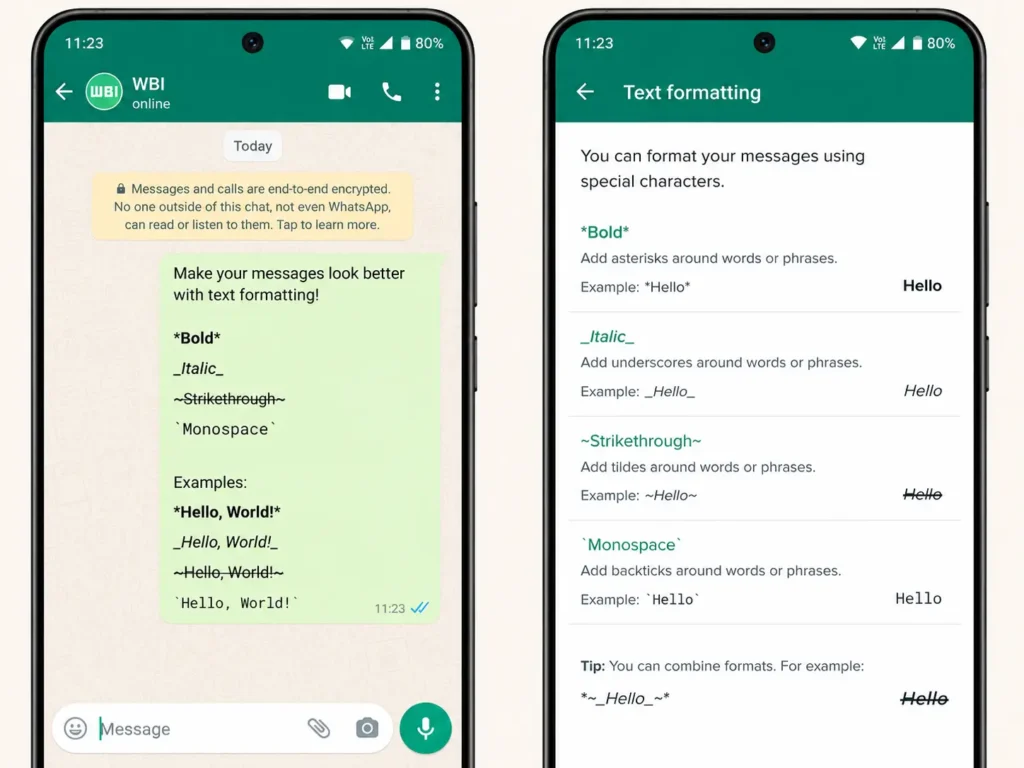
You do not always need stickers or emojis to make an important message stand out. WhatsApp has built-in text formatting that lets you use bold, italic, strikethrough and monospace, along with list and quote formatting on supported platforms.
Here are some simple examples:
Bold:
*Important*
Italic:
_Important_
Strikethrough:
~Old Price~
Monospace:
`Important`
You can also create bullet points and numbered lists in supported versions.
Why this WhatsApp trick is useful
I find this particularly useful in work chats, college groups and family groups. Instead of sending five separate messages, you can make one message easier to scan.
For example:
Today’s tasks
- Finish the report
- Send the presentation
- Call the client
This small trick makes long WhatsApp messages much easier to read.
4. Make Messages Disappear Automatically
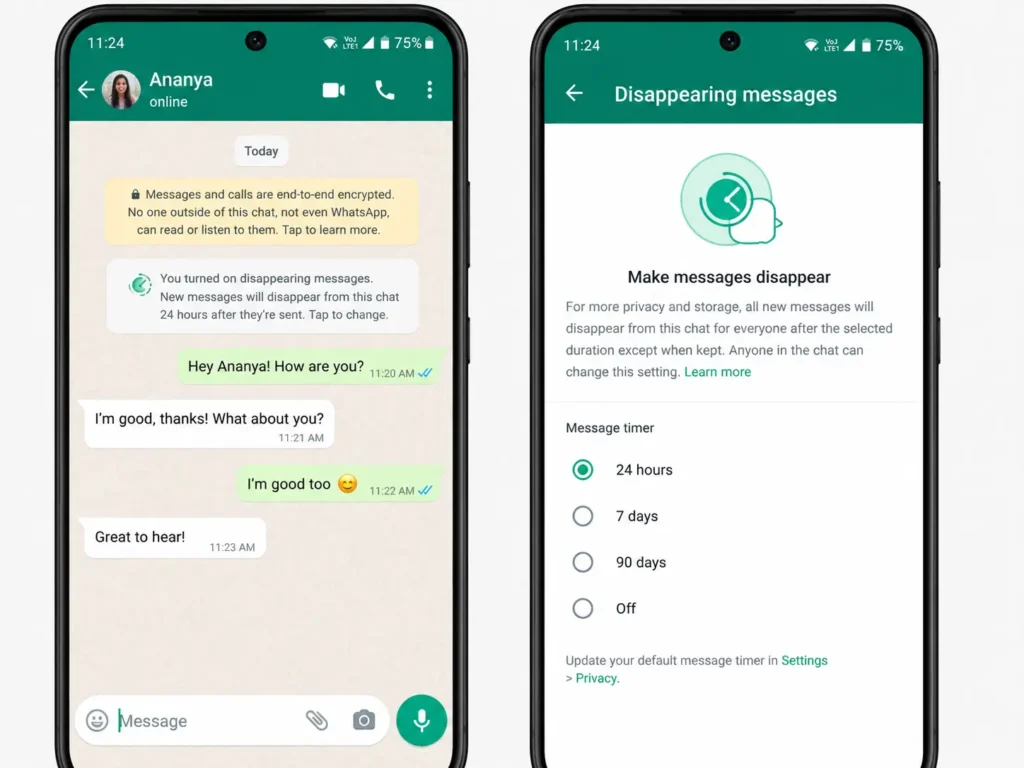
If you regularly have conversations containing temporary information, Disappearing Messages can be useful.
WhatsApp lets you choose disappearing-message durations of 24 hours, 7 days or 90 days. You can enable the feature for individual conversations or groups, and WhatsApp also allows you to set a default disappearing-message duration for chats.
How to turn on Disappearing Messages
- Open the WhatsApp chat.
- Tap the contact or group name.
- Select Disappearing Messages.
- Choose 24 hours, 7 days or 90 days.
Keep in mind that disappearing messages are not a guarantee that information can never be saved. A recipient may still preserve information in other ways, and WhatsApp also provides options for keeping certain disappearing messages.
So, use this feature as a privacy and chat-management tool rather than assuming that it makes information completely impossible to retain.
5. Correct a WhatsApp Message After Sending It
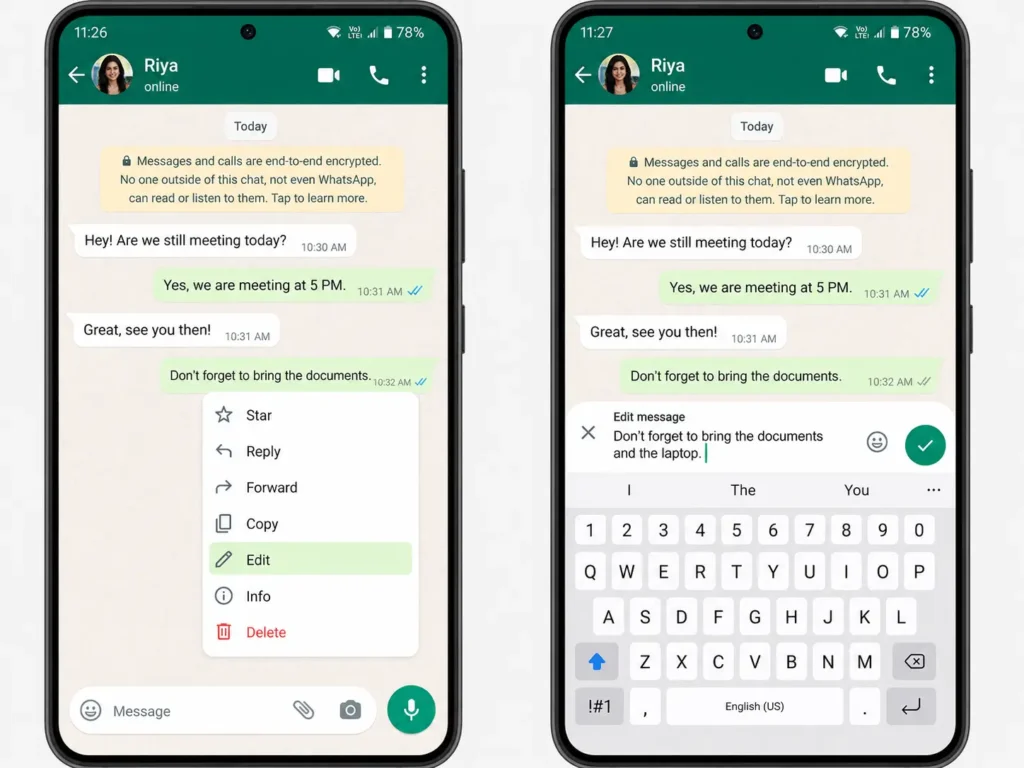
We have all sent a WhatsApp message and noticed a spelling mistake immediately afterwards.
The good news is that you do not always need to delete the message and send another one. WhatsApp lets you edit a sent message for up to 15 minutes after sending it. Edited messages are marked as edited, but WhatsApp does not show the previous version of the message.
How to edit a WhatsApp message
- Send your message.
- Long-press the message.
- Select Edit.
- Correct the text.
- Tap the option to save the edited message.
This is particularly handy when you have accidentally typed the wrong date, amount, name or spelling.
Quick tip: If you have sent something important and realise the mistake after more than 15 minutes, editing will no longer be available. In that situation, send a correction rather than relying on the original message.
6. Stop Unknown WhatsApp Calls From Ringing Your Phone
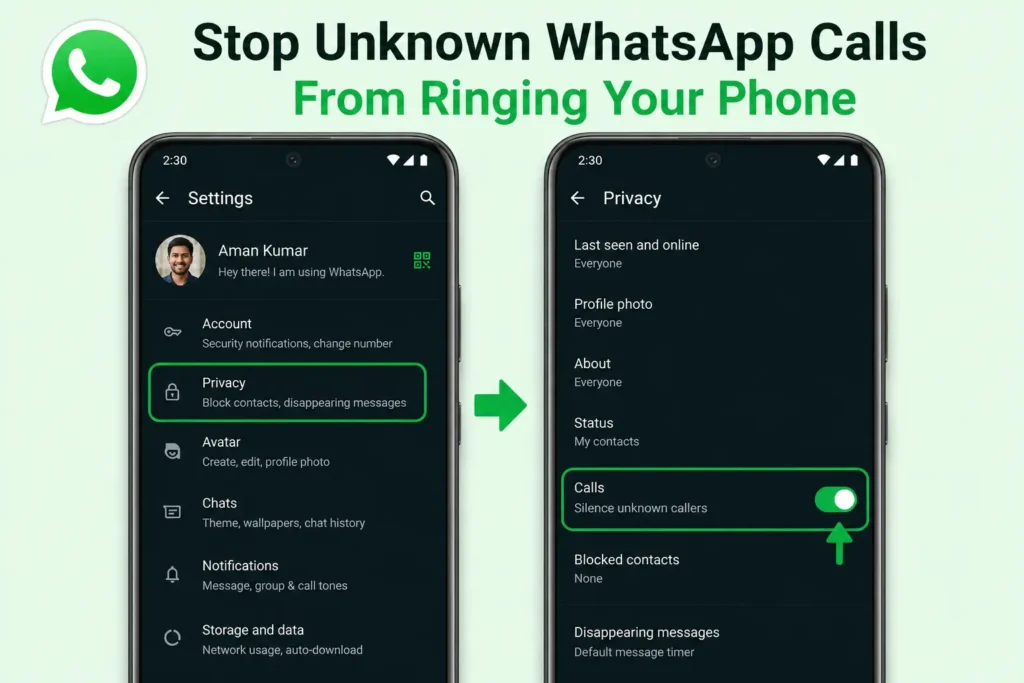
Unknown WhatsApp calls can become annoying, especially when you receive spam or scam calls.
WhatsApp has a Silence Unknown Callers feature designed to prevent calls from unknown numbers from ringing your phone. The calls can still appear in your call list, so you can check them later if you think an important person may have tried to contact you.
How to enable Silence Unknown Callers
Open WhatsApp and go to:
Settings > Privacy > Calls > Silence Unknown Callers
The exact menu wording can vary slightly by app version.
This is one of the WhatsApp tricks I would recommend enabling if you frequently receive unwanted calls.
WhatsApp has also introduced Protect IP Address in Calls, which can relay calls through WhatsApp’s servers to help prevent the other caller from seeing your IP address.
7. Use Advanced Chat Privacy for Sensitive Conversations
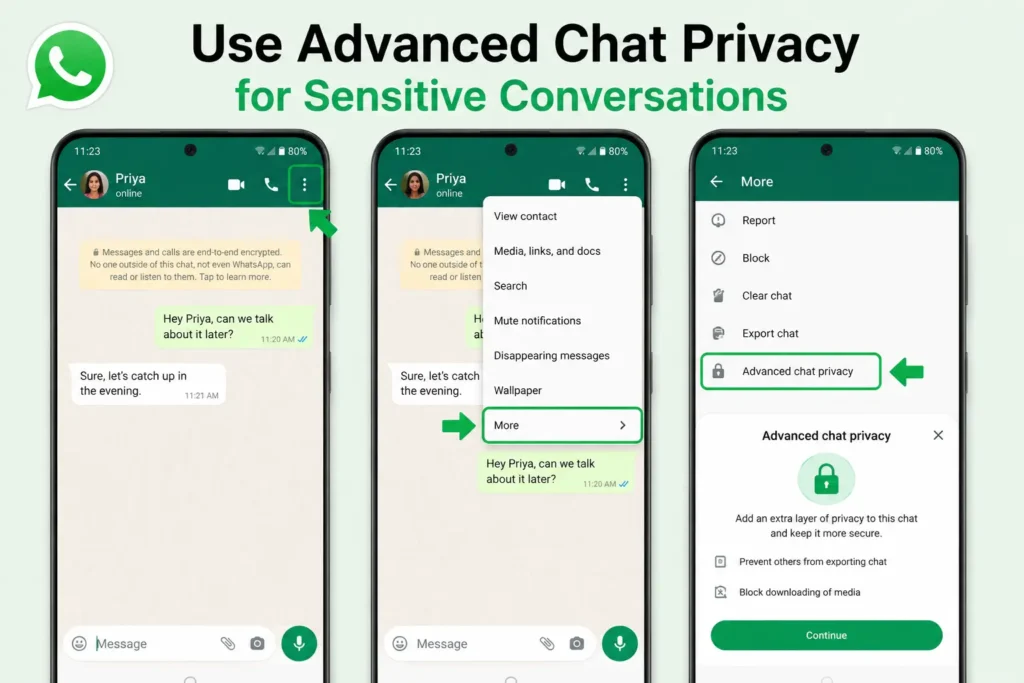
If you are discussing something sensitive in a WhatsApp group or private chat, there is another feature worth knowing: Advanced Chat Privacy.
When enabled, it can prevent participants from exporting the chat, automatically downloading its media and using messages for certain AI features. WhatsApp introduced this as an additional privacy layer on top of features such as Chat Lock and disappearing messages.
How to enable Advanced Chat Privacy
- Open the relevant WhatsApp chat or group.
- Tap the chat name.
- Select Advanced Chat Privacy.
- Turn the setting on if it is available.
This can be particularly useful for private groups where members may not know each other closely but the conversation itself is sensitive.
One more privacy setting worth checking
WhatsApp also recommends using its built-in privacy and security tools, including two-step verification. WhatsApp has recently announced stronger account-security features as well, so keeping the app updated is important.
What Are Some Cool WhatsApp Tricks?
Some of the coolest WhatsApp tricks are actually the practical ones that save time or improve privacy.
You can:
- Lock private conversations with Chat Lock.
- Hide locked chats using a Secret Code.
- Link your WhatsApp account to another supported device.
- Format messages using bold, italic and other styles.
- Set messages to disappear after a chosen period.
- Edit messages after sending them.
- Silence calls from unknown numbers.
- Use Advanced Chat Privacy for sensitive conversations.
The best part is that these are built into WhatsApp itself. You do not need a third-party WhatsApp tricks app to use them.
How Do I Link My Partner’s WhatsApp to Another Phone?
If your partner wants to use their own WhatsApp account on another phone, the proper way is to use WhatsApp’s Linked Devices feature with their knowledge and permission.
The account owner needs to initiate the linking process from their primary phone and approve the secondary device. WhatsApp officially supports linked devices, including companion phones.
There is no legitimate WhatsApp trick for secretly linking or monitoring another person’s account.
If your goal is simply to use the same account on two phones, use the official Linked Devices process instead.
Also, after linking a device, the account owner can check the connected devices at any time and log out devices they no longer want connected.
What Are Some Magic Tricks for WhatsApp?
There are plenty of WhatsApp features that feel like “magic tricks” when you discover them for the first time.
For example, you can make text bold by placing an asterisk on both sides of it, create italic text using underscores, or use other supported formatting options.
Another useful trick is editing a message after you have sent it. If you notice a typo, simply long-press the message and select Edit, as long as you are still within WhatsApp’s 15-minute editing window.
Chat Lock and Secret Code are another example. A conversation can be moved away from the normal inbox and protected behind your device authentication, while Secret Code can make locked chats harder to discover.
So, while there is no secret “magic button”, WhatsApp has quite a few features that are easy to miss.
What Are the Hidden Tricks in WhatsApp?
Some of the most useful hidden WhatsApp tricks are buried inside Privacy, Chats and Linked Devices settings.
Here are four worth checking today:
1. Secret Code for Locked Chats
You can use a separate Secret Code to make locked conversations harder to find.
2. Silence Unknown Callers
Unknown WhatsApp calls can be silenced so they do not ring your phone, while still appearing in your call list.
3. Advanced Chat Privacy
Sensitive chats can use an additional privacy layer that restricts chat exporting and automatic media downloads, among other protections.
4. Linked Devices
You can access your WhatsApp account on supported companion devices without having to create another account.
These are much more useful than the so-called WhatsApp hacks you may see online that promise access to someone else’s messages or account. Avoid apps and websites that make those claims because they can put your account and personal information at risk.
WhatsApp Tricks for iPhone: Which Ones Work?
Most of the major WhatsApp features mentioned in this guide are available across Android and iPhone, although the exact menus can look different.
iPhone users can use features such as:
- Chat Lock
- Linked Devices
- Disappearing Messages
- Message Editing
- Text Formatting
- Silence Unknown Callers
- Advanced Chat Privacy
WhatsApp currently supports iPhones running iOS 15.1 or newer, with the minimum supported version scheduled to move to iOS 15.5 from 30 November 2026.
If a feature is missing on your iPhone, first update WhatsApp and iOS before assuming that the feature is unavailable.
Final Thoughts
WhatsApp is much more than a simple messaging app. Once you start exploring its privacy, chat and device settings, you will find plenty of useful features that are easy to overlook.
If I had to choose only three WhatsApp tricks to try first, I would start with Chat Lock and Secret Code for privacy, Linked Devices for using WhatsApp across devices, and Silence Unknown Callers for reducing unwanted calls.
And one final piece of advice: avoid third-party apps claiming to offer “secret WhatsApp tricks”, hidden messages or access to another person’s WhatsApp. Stick with the official WhatsApp app and its built-in features. Your privacy is worth more than a shortcut.
Have you already tried any of these WhatsApp tricks? The Chat Lock and Linked Devices features are probably the two I would recommend checking first.
Frequently Asked Questions
1. What are some useful WhatsApp tricks?
Some useful WhatsApp tricks include using Chat Lock and Secret Code, linking WhatsApp to another device, formatting messages, editing sent messages, enabling disappearing messages and silencing calls from unknown numbers. These built-in features can improve privacy, convenience and everyday messaging.
2. How do I hide private chats on WhatsApp?
You can use Chat Lock to move a private conversation into the Locked Chats section. For additional privacy, WhatsApp’s Secret Code can hide the Locked Chats folder from your normal chat list. You can then access hidden locked chats using the secret code.
3. Can I use the same WhatsApp account on two phones?
Yes. WhatsApp allows you to use the same account on a primary phone and supported companion devices through Linked Devices. On the primary phone, go to Settings > Linked Devices > Link a Device and follow the instructions to connect the second phone.
4. Can I edit a WhatsApp message after sending it?
Yes. WhatsApp allows you to edit sent messages for up to 15 minutes after they are sent. Long-press the message, select Edit, make your changes and save them. The edited message will be marked as edited.
5. How can I stop unknown WhatsApp calls?
You can silence calls from unknown numbers by going to WhatsApp > Settings > Privacy > Calls > Silence Unknown Callers. Silenced calls will not ring your phone, but they can still appear in your WhatsApp call list.